Manage Users
This guide explains how to give volunteers and committee members their own login details, control what they can edit or view, and manage access to your Digital Fife website.
We recommend creating individual user accounts rather than sharing your website's main administrator password.
Before you start
You must be logged in as an administrator to manage users.
If you need help accessing your website, see our Logging In and Passwords guide.
Open Manage Users
- Log in to your website.
- Click Admin in the control panel at the bottom of the page.
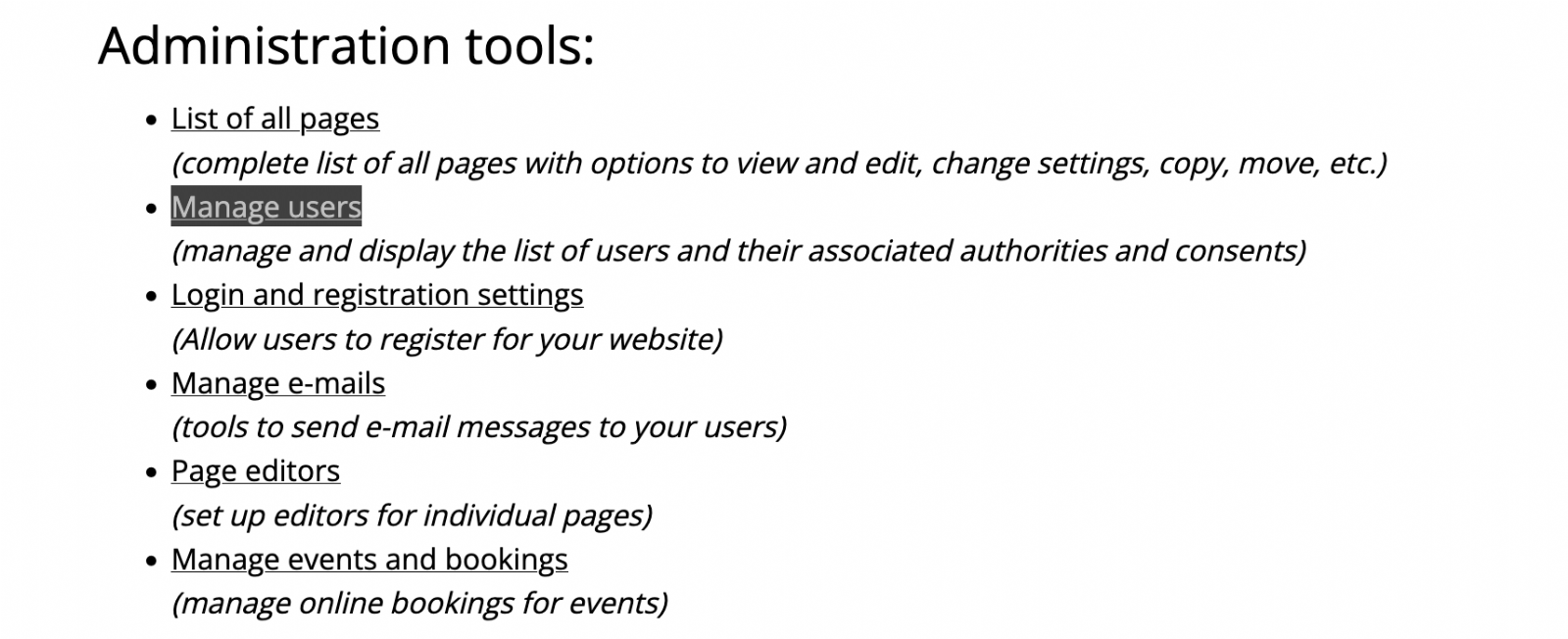
- Under Administration tools, select Manage users.
You will see a list of existing users. If no individual accounts have been created, the list will be empty.
Add a new user
- Click Add user.
- Enter the person's name or preferred login name in User name (used for log in).
- Enter their email address.
- Create a password for their account.
- Make sure User is active is ticked.
- Select the appropriate user rights (explained below).
- Click Save.
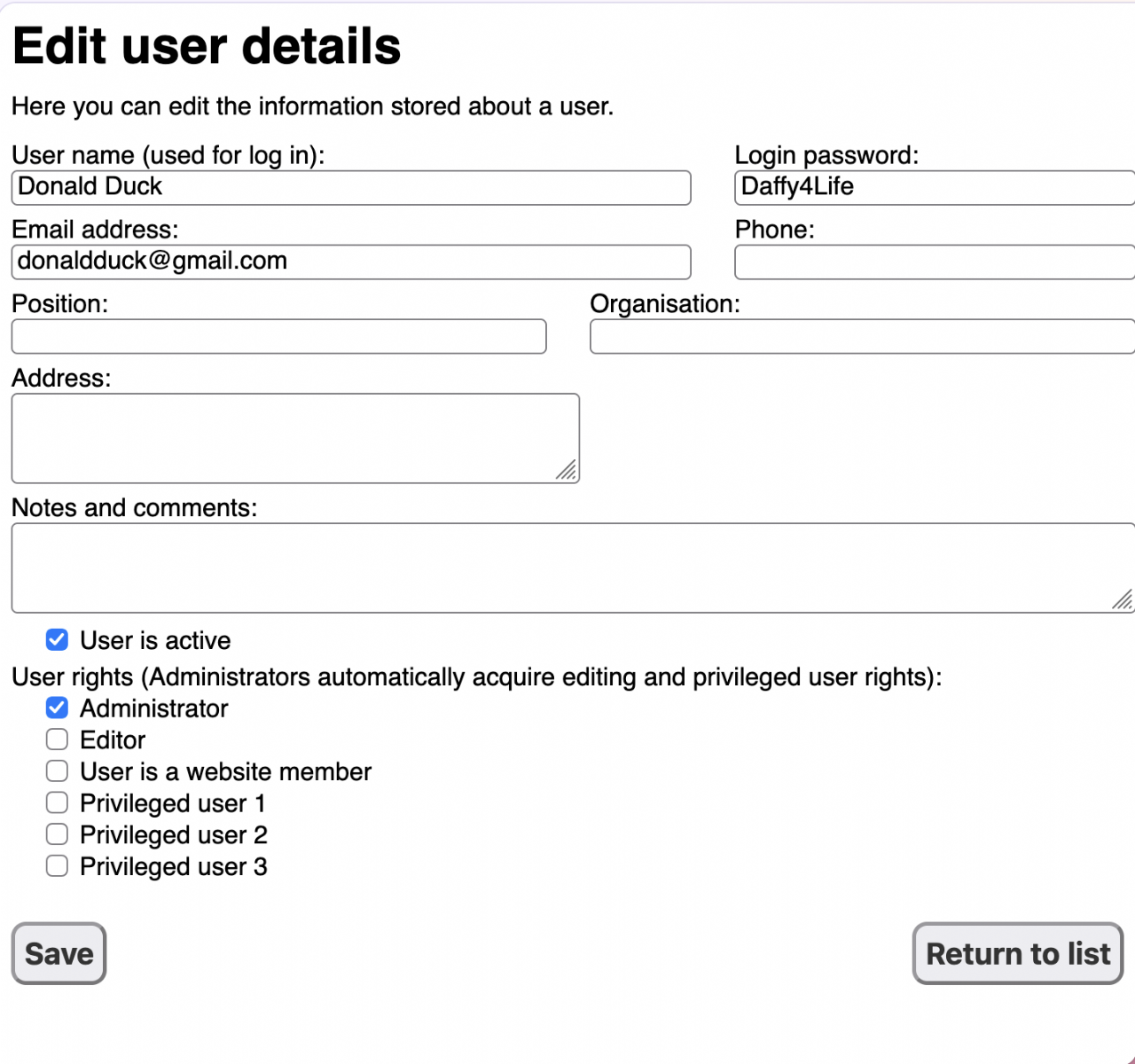
Important: Users can log in using either their username or email address, together with their individual password.
Digital Fife does not automatically send new users their login details. You will need to let them know their account has been created and provide their login details securely.
Understanding user rights
When adding or editing a user, you can select different permissions using the checkboxes.
| User right | What it allows |
| Administrator | Manage the website, its settings and users. |
| Editor | Edit all pages on the website. |
| Website member | Have an individual account without general editing rights. |
| Privileged user 1, 2 or 3 | View pages that have been restricted to particular groups of users. |
Good practice: Only give people the access they need. Most volunteers who help maintain the website will need Editor access, rather than full Administrator access.
Allowing someone to edit specific pages only
If you want a volunteer to edit only certain pages, rather than the whole website, you can allocate them as a Page Editor.
- Go to Admin.
- Under Administration tools, select Page editors.
- Allocate the appropriate pages to the user.
This is useful when several volunteers are responsible for different sections of a website.
Restricting who can view pages
Privileged User rights are used to control who can view particular pages, not who can edit them.
For example, you might have a page containing committee information that should only be visible to certain members.
You can assign Privileged User rights to individual accounts and apply the corresponding viewing restrictions to relevant pages.
Edit a user's details or permissions
- Go to Admin > Manage users.
- Find the person in the user list.
- Click Edit.
- Update their details, password or permissions.
- Click Save.
You can also untick User is active to temporarily prevent someone from logging in without deleting their account.
Remove a user
If someone leaves your organisation or no longer needs access:
- Go to Admin > Manage users.
- Find their account.
- Click Delete.
- Confirm the deletion if prompted.
Alternatively, untick User is active to disable their login while keeping their account details.
Problems logging in?
If a user cannot access the website, check that:
- Their account is marked as active.
- They are entering their own username or email address.
- They are using their individual password, not the main administrator password.
- Their password has been entered correctly (passwords are case-sensitive).
For more information, see Logging In and Passwords.
Need help?
If you're having difficulty adding or managing users, please contact the Digital Fife team.
